
Appearance
Activity Groups
Every subject is made up of one or more activity groups, for example a Lecture group and a Tutorial group. Each group typically has multiple time options (e.g. Monday 9 am, Tuesday 2 pm) and you enrol in exactly one of them.
Viewing groups
Click the subject row in the sidebar to expand it and see its groups. Each group shows:
- The activity type (Lecture, Tutorial, Laboratory, Workshop, etc.)
- The number of available options
- A mode dropdown for controlling how the solver handles this group
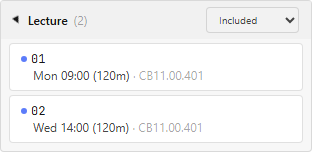
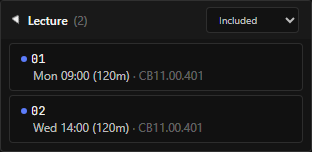
Group modes
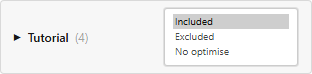
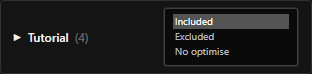
Each group has a mode that controls how it is treated during optimisation:
| Mode | What the solver does |
|---|---|
| Included | Must schedule exactly one option from this group. |
| Excluded | Skips this group entirely. No option is scheduled. |
| No optimise | Schedules one option but does not use this group when ranking solutions. |
The default mode for each group is set automatically:
- Most activity groups default to Included.
- Support or supplementary activities (such as U:PASS or consultation sessions) default to Excluded.
- Setting a group to Excluded clears any existing lock for that group.
- No optimise still schedules a class, but it does not affect campus days or gap time ordering.
You can change any group's mode using its dropdown.
Options within a group
Expand a group to see its individual time options. Each option shows:
- The timeslot(s) it occupies
- The location and staff member (if available)
- Whether it is an online class (shown with an ONLINE badge)
Online classes are excluded from on-campus metrics (days on campus and gap time).
Locking a specific option
Click an option inside an expanded group to lock it to that specific timeslot. A locked option is pinned regardless of what the solver would otherwise choose. The timetable grid highlights the locked option.
To release a single lock, click the locked option again. To release all locks, use the Clear Locks button in the results bar.
See Locking choices for full details.
Hovering over groups and options
Hovering or focusing a group row or an individual option previews that class on the timetable grid, making it easy to see where it falls in the week before committing.
Dragging a scheduled class to another option
After you generate a timetable, some class blocks on the grid become draggable. Dragging one of these blocks reveals alternative options from the same activity group directly on the timetable.
The example below uses a tutorial block, with alternative tutorial times visible across several days of the week.
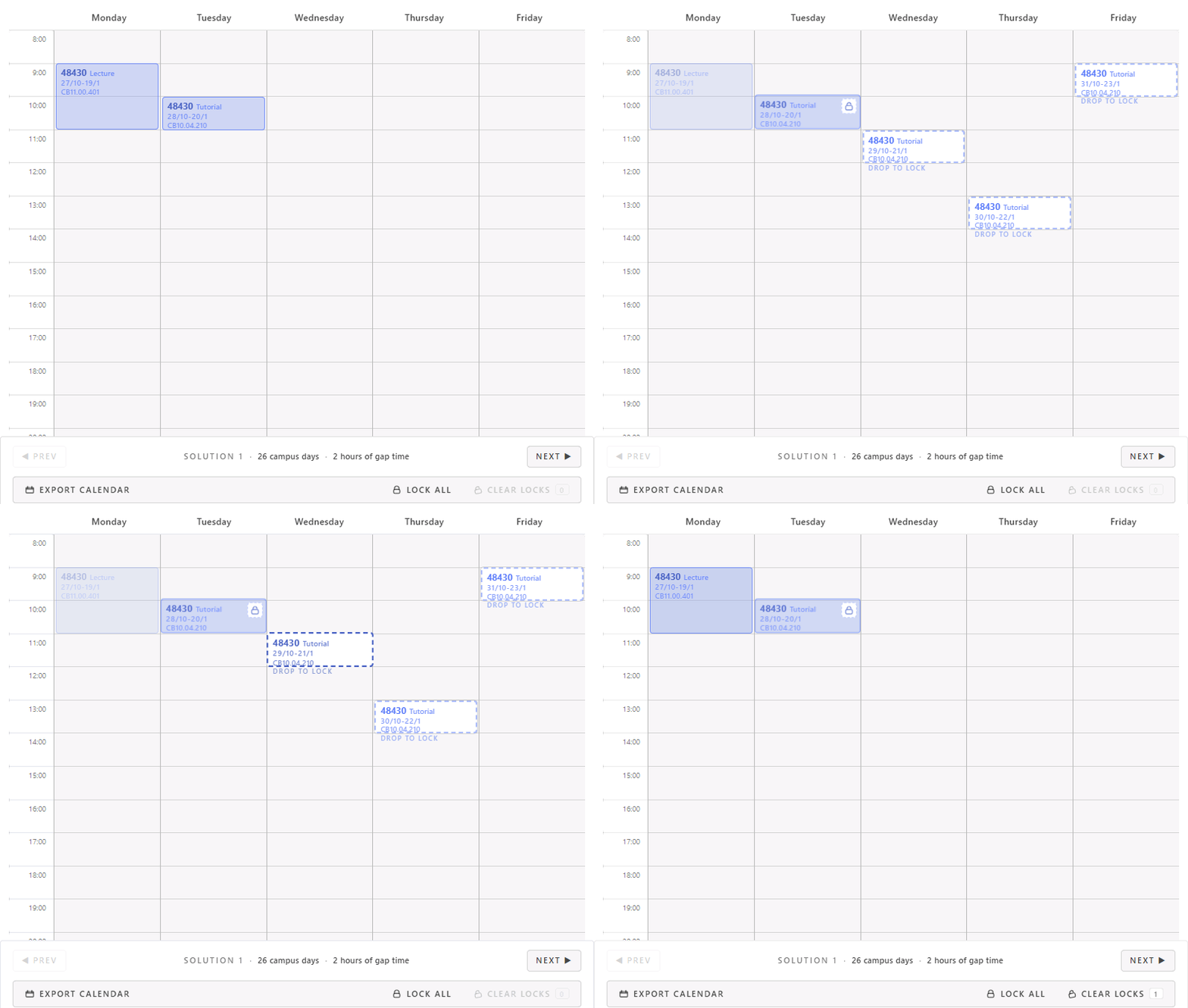
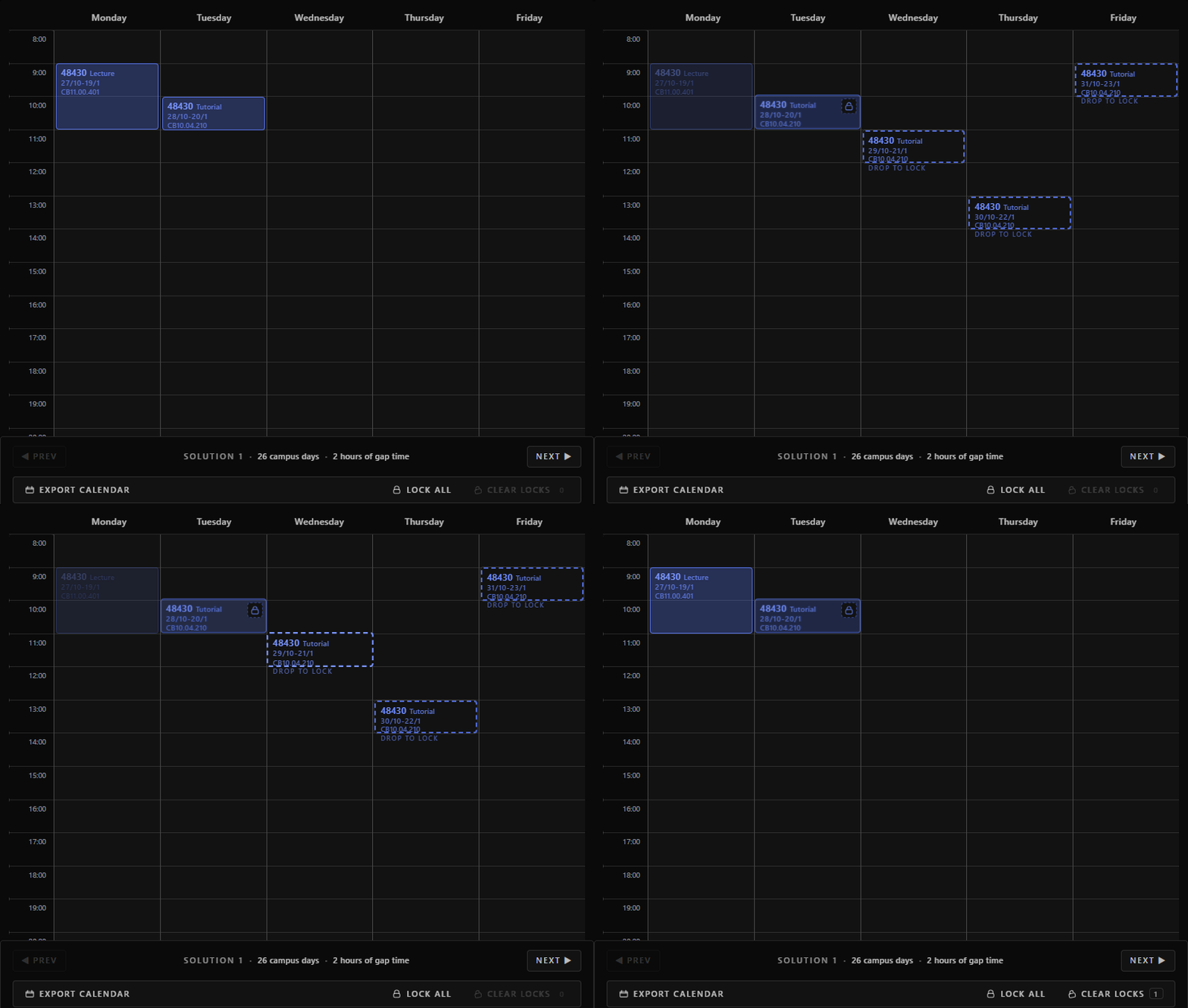
- Drop to lock means that alternative fits the current timetable and can replace the current option.
- Fixed clash means that alternative would conflict with another fixed or locked class in the current configuration.
Drop a block onto a valid preview to switch to that option and lock it in place. This is the fastest way to compare another tutorial, lab, or workshop time while keeping the rest of the solution stable.